Connectivity
This page describes how a SENSORhub SEH device connects to the network, how its connection state is signaled, how it is configured offline through the web setup page, and how it falls back when the configured connection cannot be established.
Status Signalisation
Applies to SEH101 and SEH201.
At startup the device status is signaled by the connected LED strips and by the status LED (SEHx01). To help during installation (mapping strips to outputs), a different count of LEDs lights up on each output: one LED on output 1, two LEDs on output 2, and so on.
The signalisation colors are shown until the first Set/Data command is received.
| Color | Status |
|---|---|
| Red | Ethernet/WiFi connection attempt, no Ethernet/WiFi connection. |
| Yellow | MQTT connection attempt, no MQTT connection. |
| Blue | Fallback mechanism active (planned from V0.2.33/V0.3.6), check configuration and/or network connection. |
| Cyan/Green-Blue | Connection established — to the onboarding-service (if no user MQTT is configured), or to the user MQTT (if it is configured). |
Web Setup Page
Applies to SEH101 and SEH201.
As an option for offline configuration, the integrated setup page can be used. It can be accessed from any browser by entering http:// followed by the IP address of the device. By default the device tries to obtain its IP address from a DHCP server; the assigned address can be looked up in that server/router. The web setup page is available from firmware version V0.2.27-29.
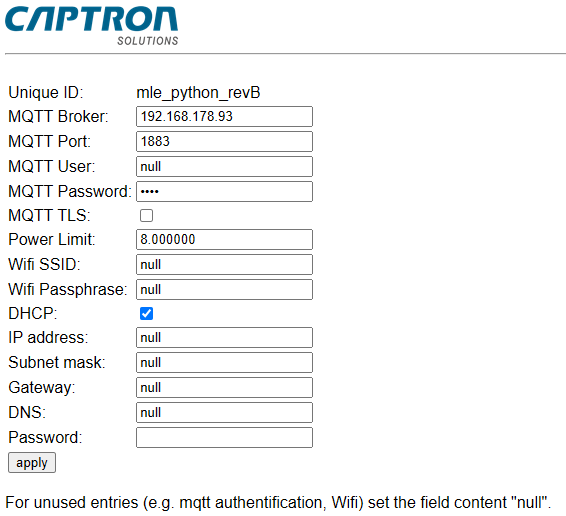
To apply settings, enter pythonhead22 in the Password field (last line) and confirm with the apply button.
For unused entries (for example MQTT authentication or WiFi), set the field content to null.
Static IP Setting
If a static IP setting is required (for example, when no DHCP server can be used), fill in at least the three fields: IP address, Subnet mask and Gateway. If there is no gateway, enter a valid address here anyway (for example the device's own address).
From firmware version V0.2.27-57, the DNS field can be left null. The device will then omit trying to connect to the onboarding-service.
Certificates for User MQTT Connection
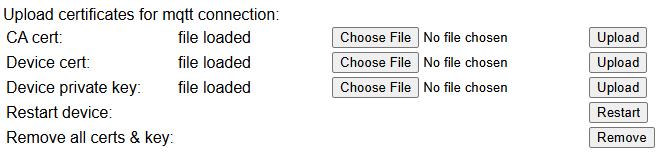
If TLS is to be used together with client certificates (mTLS), the web setup page also offers the possibility to upload certificate files (for example crt/pem/key). This requires at least firmware version V0.3.7. The file name and extension have no relevance. Make sure that the TLS checkbox is set.
Also make sure to upload the proper issuer certificate as the CA cert, so that the TLS engine can verify the device certificate as well as the incoming server certificate. Self-signed certificates can also be used.
If the file is uploaded successfully, "file loaded" appears. To overwrite a file, choose a new file and select "Upload". All files can be removed with "Remove". After uploading all necessary files, restart the device by clicking "Restart".
Fallback Functionality
Applies to SEH101 and SEH201.
Priority
From firmware version V0.2.27-41, the Ethernet port has priority over WiFi. If a connection can be established through LAN, the WiFi setting is ignored. If no Ethernet connection can be established and no WiFi is configured, the device tries to connect to the fallback WiFi (EU variants only) — this takes up to 45 seconds.
WiFi Fallback
If a configured WiFi network cannot be reached, the device tries to access this hard-coded WiFi:
- SSID
SEH_fallback_wifi - Passphrase
fallback_pw
This fallback WiFi network can be created, for example, by setting up a hotspot on a mobile phone with the specific name and passphrase.
Once the connection to the fallback WiFi is established, the device connects to the onboarding-service and gets the latest configuration. In this way, a faulty WiFi configuration can be corrected.
The WiFi functionality is only available on EU variants. On other variants such as JP, CN or US, the WiFi module is disabled.
Static IP Fallback
If a device with a static IP setting cannot access the network after about 45 seconds, it falls back and tries to obtain its network settings from a DHCP server.
If the fallback is successful, the device connects to the onboarding-service and gets the latest configuration. A faulty IP setting can be corrected this way.
DHCP Fallback (APIPA)
If the device is configured to obtain an address from a DHCP server and this server is not reachable, the device assigns itself this network setting (within the APIPA range) after about 45 seconds:
- IP address:
169.254.101.201 - Subnet:
255.255.0.0
With a direct Ethernet connection to a computer, it can be reconfigured using the web setup page. This fallback method is available from firmware version V0.2.27-63.
Three-Step Fallback
From firmware version V0.3.7-1, the fallback mechanisms are simplified and unified.
Independent of the configuration (static IP or DHCP), the fallback steps are always:
Static IP → DHCP → APIPA → then start again at the beginning. Each step is active for about 45 seconds.